

Oct 10, 2026 ,

Stay in the loop

Subscribe to the newsletter for all the latest updates

Error: Contact form not found.
Skip to main content

kannadanewsclick.com

Guide

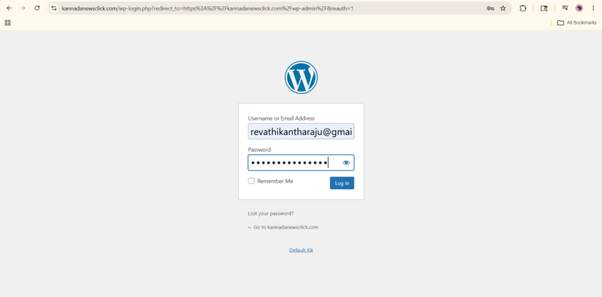
How to login?

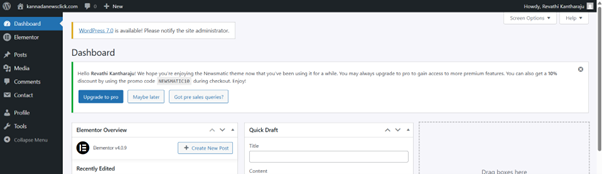
Login to WordPress

Go to:

https://kannadanewsclick.com/wp-admin

Login using your credentials.

✅ Click Remember Me if you trust the device you are using.
How to Post Your News?

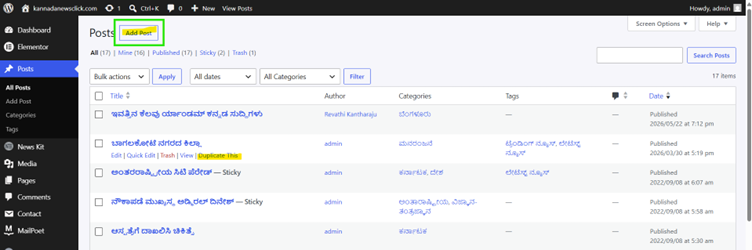
Step 1 — Create a New Post

  • Go to Posts
  • Click Add New Post

OR

  • Duplicate a sample post and edit it

Step 2 — Add Your News Content

  • Copy and paste your news content
  • Add:
    • Title
    • Paragraphs
    • Headings if needed

Adding Quotes

If you want to add a quote:

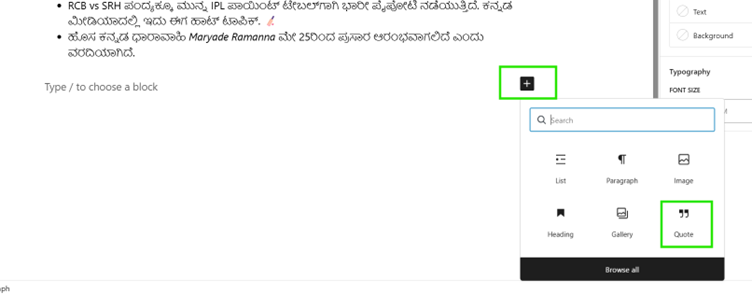
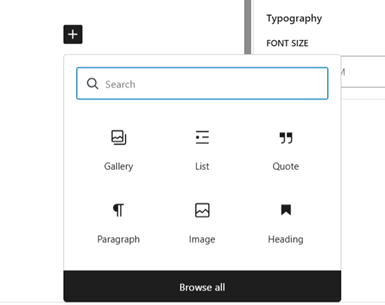
  • Click the + (Plus) icon
  • Search for Quote
  • Select the Quote block
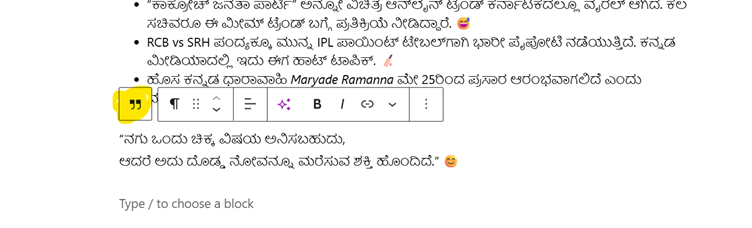
  • Type your quote

💡 Whenever you see the quote icon while typing, it means you are inside a quote block.

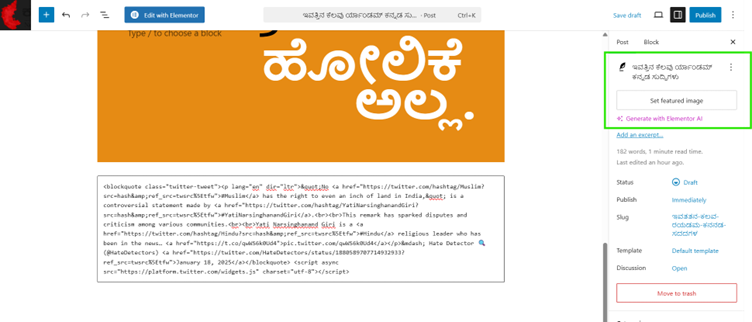
Set Featured Image

The featured image will appear as the main image for your news article.

  • Click Set Featured Image
  • Upload or choose your image

✅ Add a short sentence/caption below the image.
This acts as a hook or summary for the news.

Adding Excerpt

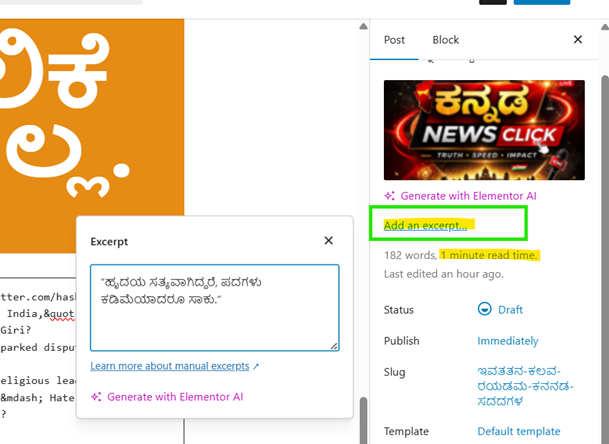
The excerpt is a short summary of your news article.
It may appear on the homepage, category pages, or previews.

How to Add Excerpt

  • Find the Excerpt section

  • Type a short summary of your news

✅ Keep it short, catchy, and meaningful.

Example:

Bengaluru witnessed heavy rainfall causing traffic congestion across major areas.

💡 Tip:
Try to write the excerpt in 1–2 lines so readers quickly understand the news topic.


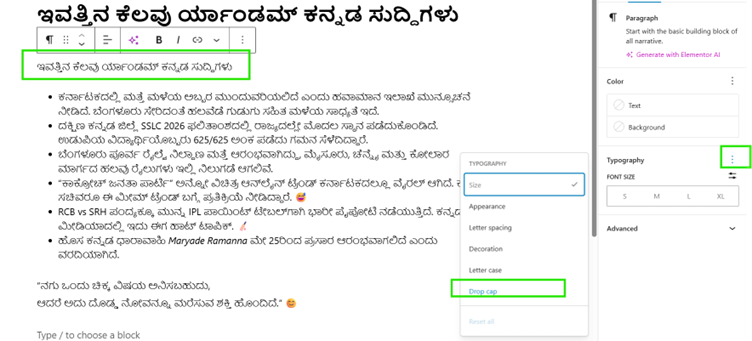
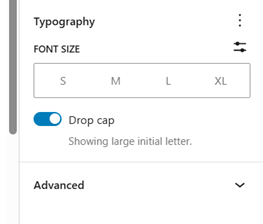
How to Enable Drop Cap

To make the first letter large and stylish:

  • Select the paragraph
  • Open block settings
  • Enable Drop Cap

Add More Content Blocks

You can add:

  • Headings
  • Images
  • Paragraphs
  • Quotes
  • Galleries
  • And many more blocks

Feel free to explore creatively.

Adding Image Gallery

  • Click + (Plus)
  • Choose Gallery
  • Upload or select multiple images

You can rearrange images however you want.

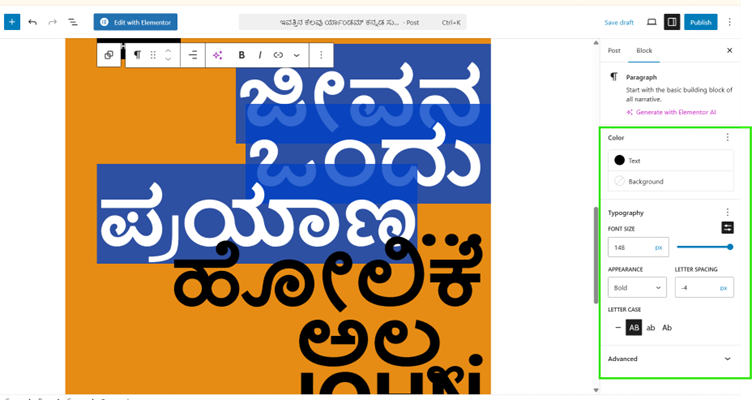
Editing Ready-Made Quotes

You can choose pre-designed quote styles and customize them.

You can change:

  • Text color
  • Font size
  • Background color
  • Alignment
  • Style

🎨 Use your creativity to make the post attractive.

How to Embed an X (Twitter) Post

Step 1 — Open the X Post

Open the X/Twitter post you want to embed.

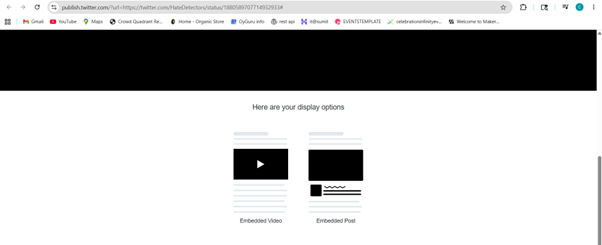
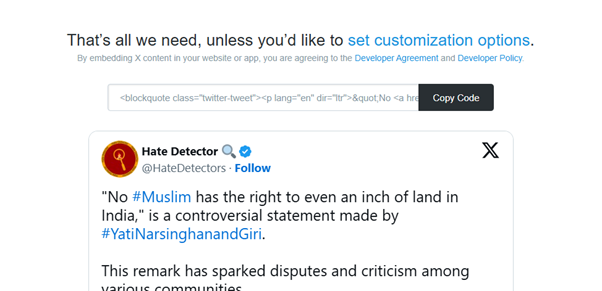
Step 2 — Copy Embed Code

  • Click the 3 dots
  • Select Embed Post
  • Choose:
    • Only video
    • Or full post

Then copy the HTML embed code.

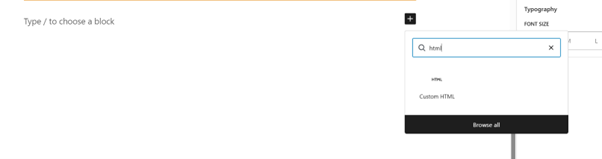
Step 3 — Add HTML Block in WordPress

  • Return to your post
  • Click +
  • Search for Custom HTML
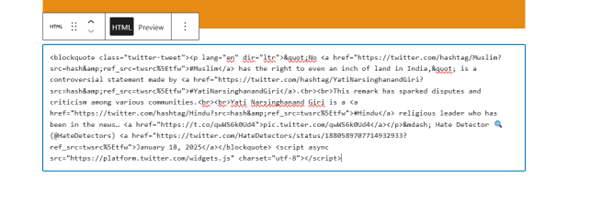
  • Paste the embed code

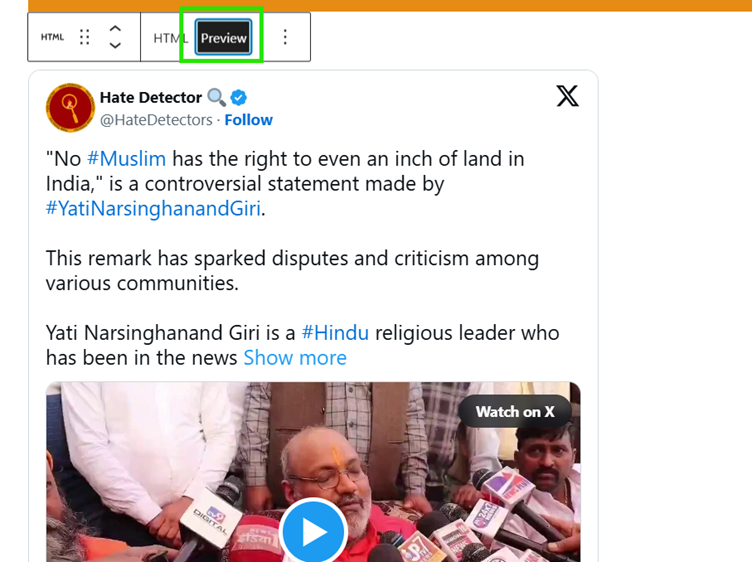
Step 4 — Preview

Click Preview to check how the embedded post looks.

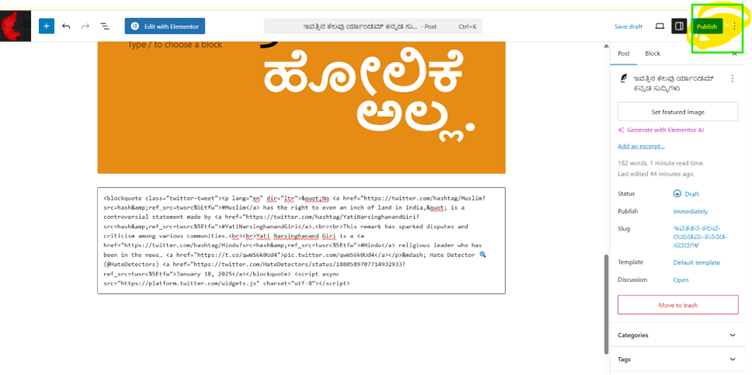
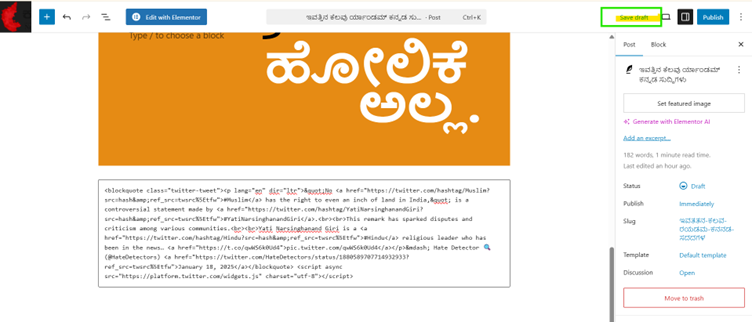
Publish or Save Draft

To Make the Post Live

Click Publish

To Save and Edit Later

Click Save Draft

Final Check

After publishing:

  • Click View Post
  • Verify:
    • Images
    • Formatting
    • Quotes
    • Embedded posts
    • Spelling mistakes

Front Page News

Make a Post Sticky

⚠️ Only Admins/Editors can do this.

Steps:

  • Go to Posts
  • Click Quick Edit
  • Change category if needed
  • Enable:

✅ Make this post sticky

Sticky posts appear at the top of the homepage/news feed.